
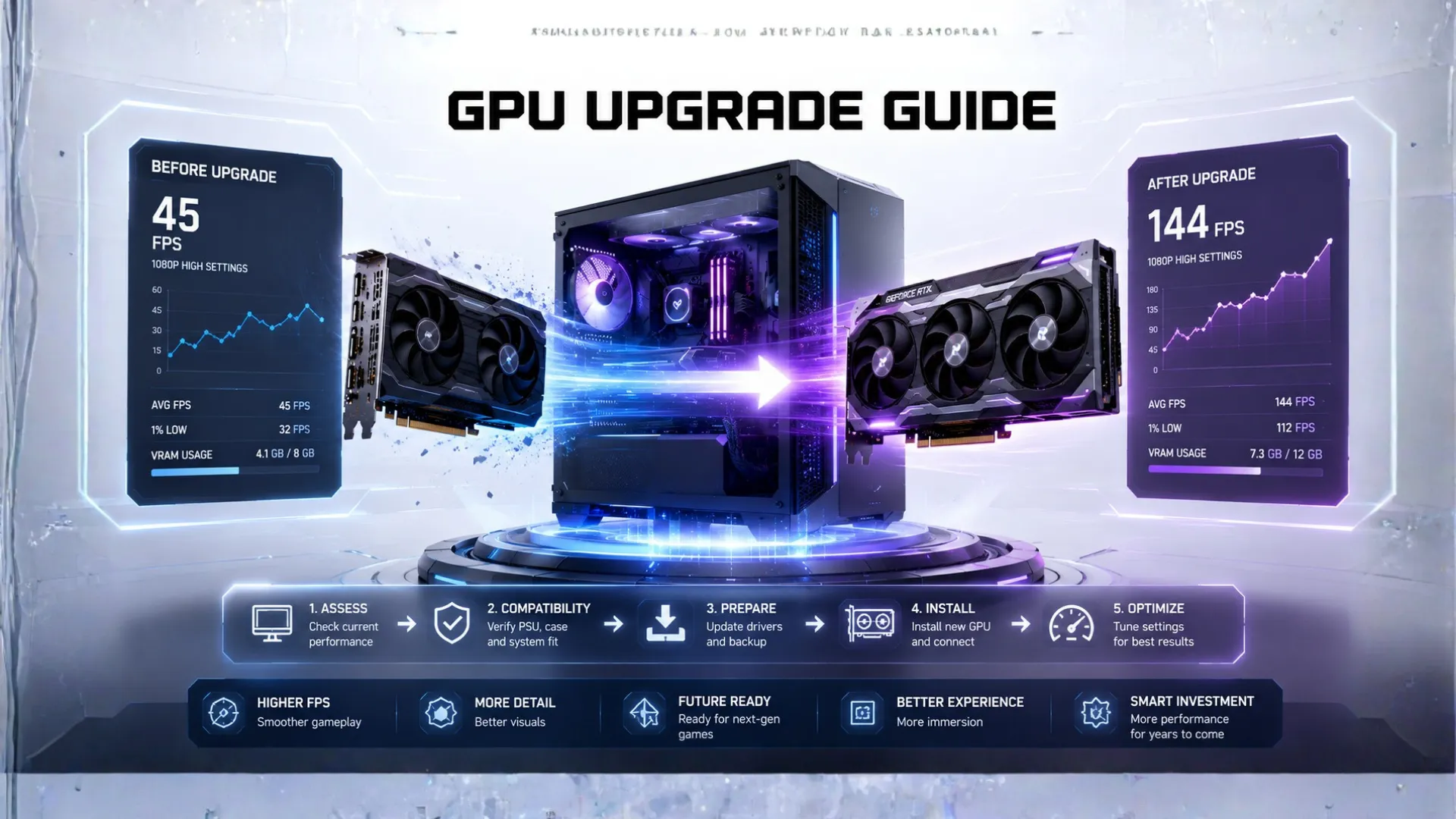
GPU Upgrade Guide: Should You Upgrade Your Graphics Card?
A GPU upgrade is the single best way to boost gaming performance, since the graphics card has the biggest say in your frame rate. But it is not always the right move, and there are a few things to check first so you do not waste money.
This guide answers the three questions every upgrader has: can you upgrade your graphics card, should you, and how do you do it. We will help you avoid the common mistakes and show you a quick way to know if the GPU is even your real problem. Let us figure out your upgrade.
Can You Upgrade Your Graphics Card?
The good news is that most desktop PCs can take a new graphics card, since it simply plugs into a slot on the motherboard. But a few things decide whether a specific card will work in your system:
- A free PCIe slot. Almost every desktop motherboard has one, so this is rarely an issue.
- Enough power. Bigger cards need more watts. Your power supply must be strong enough, which is the most common roadblock.
- Case clearance. High-end cards are long and thick, so the card must physically fit your case.
- A balanced processor. A powerful new card paired with an old processor can be held back, so the upgrade may need a CPU too.

Before buying, confirm your power supply can handle the card with our PSU calculator, and that everything fits and matches with our PC compatibility checker. Laptops and most mini PCs cannot have their graphics card upgraded, since the chip is built in.
Should You Upgrade Your GPU?
This is the question that saves you money. A GPU upgrade is worth it more often than a CPU upgrade for gamers, because the graphics card drives your frame rate. Still, it is not always the answer. Here is how to tell.
A GPU upgrade is worth it when:
- Your games run below the frame rate you want, even after lowering settings.
- You want to move up a resolution, like from 1080p to 1440p or 4K.
- Your card is several years old and struggling with new titles.
- Your graphics card runs near 100 percent in games while your processor has room to spare.
A GPU upgrade is probably not worth it when:
- Your processor is the part holding you back, not the graphics card.
- A simple driver update or settings tweak would fix your frame rate.
- Your current card already hits your monitor’s refresh rate comfortably.

Before you spend anything, confirm the GPU is actually your weak link. Drop your graphics card and processor into our bottleneck calculator, or check the card directly with the GPU bottleneck calculator. If it shows your processor as the limit, a new card will not help much, so check whether the chip is the issue with the CPU bottleneck calculator. You can also learn to check your PC bottleneck yourself.
What Should You Upgrade Your GPU To?
If an upgrade makes sense, the next question is which card to choose. The goal is a real jump in performance that fits your PC and matches your resolution. A few simple rules:
- Aim for a real leap, not a small step. Upgrading to a card only slightly faster is rarely worth it. Jump up a tier or more.
- Match it to your resolution. Buy for the resolution you play, since a 4K card is wasted on a 1080p monitor.
- Check the power and size. Make sure your power supply and case can handle the new card before you buy.

To see where your current card ranks and what a good step up looks like, check our GPU hierarchy. For specific picks, our best GPUs roundup and best GPU for gaming guide cover the top choices, while the GPU buying guide walks you through choosing, and our budget and cheap GPUs picks cover tighter budgets. To compare two cards directly, see our GPU comparison guide, and to understand each brand, our Nvidia GeForce GPUs and AMD Radeon GPUs guides.
How to Upgrade Your Graphics Card (Step by Step)
Once you have the right card, the swap itself is straightforward. Take your time and follow these steps.
Step 1: Prepare and power down
Turn off your PC, unplug it from the wall, and press the power button once to clear any leftover charge. Work on a clean surface and touch a metal part of the case to discharge static.
Step 2: Remove the old graphics card
Open the side panel. Unplug the power cables from the old card, then unscrew it from the case bracket. Release the small clip at the back of the PCIe slot and gently pull the card straight out.
Step 3: Install the new card
Line the new card up with the top PCIe slot and press it down firmly until the clip locks. Screw it to the case bracket so it is secure.
Step 4: Connect the power cables
Plug the power cables from your power supply into the new card. Make sure every required connector is firmly seated, since a loose cable is a common cause of a card not working.
Step 5: Power on and install drivers
Close the case, plug in, and start your PC. Install the latest drivers for your new card from the maker’s official website. A clean driver install gives the best results.
Step 6: Confirm it works
Once in Windows, confirm the new card shows up, which you can do with our how to check your PC specs guide. Then test a game to enjoy your new frames.

Is There a GPU Upgrade Checker?
People often search for a GPU upgrade checker, a tool to tell them if an upgrade is worth it. That is exactly what our bottleneck calculator does. Enter your current graphics card and processor, and it shows whether the GPU is your weak link and how a new card would help. Pair it with the FPS calculator to estimate the frames a new card would give you in your games. If you are new to graphics cards, our what is a GPU guide covers the basics first.

Frequently Asked Questions
Can I upgrade my graphics card?
Most desktop PCs can take a new graphics card, since it plugs into a slot on the motherboard. The main things to check are that your power supply is strong enough and your case has room. Laptops and most mini PCs cannot be upgraded.
Should I upgrade my GPU?
Upgrade if your graphics card is the part holding you back, which is common in games. If your processor is the real limit instead, a new card will not help much. Check with our bottleneck calculator before you buy.
How do I know if I need a GPU upgrade?
If your games run below your target frame rate even after lowering settings, or your card runs near 100 percent while your processor has spare room, the GPU is your limit and an upgrade will help.
What should I upgrade my GPU to?
Aim for a real jump in performance that matches your resolution and fits your PC. Check the GPU hierarchy to see a good step up, and our best GPU guides for specific picks.
How hard is it to upgrade a graphics card?
The swap itself is easy and takes most people under half an hour. The trickier part is making sure your power supply and case can handle the new card, so check those before you buy.
Is there a GPU upgrade checker?
Yes. Our bottleneck calculator works as a GPU upgrade checker. Enter your current card and processor, and it shows whether the GPU is your weak link and whether an upgrade is worth it.


