
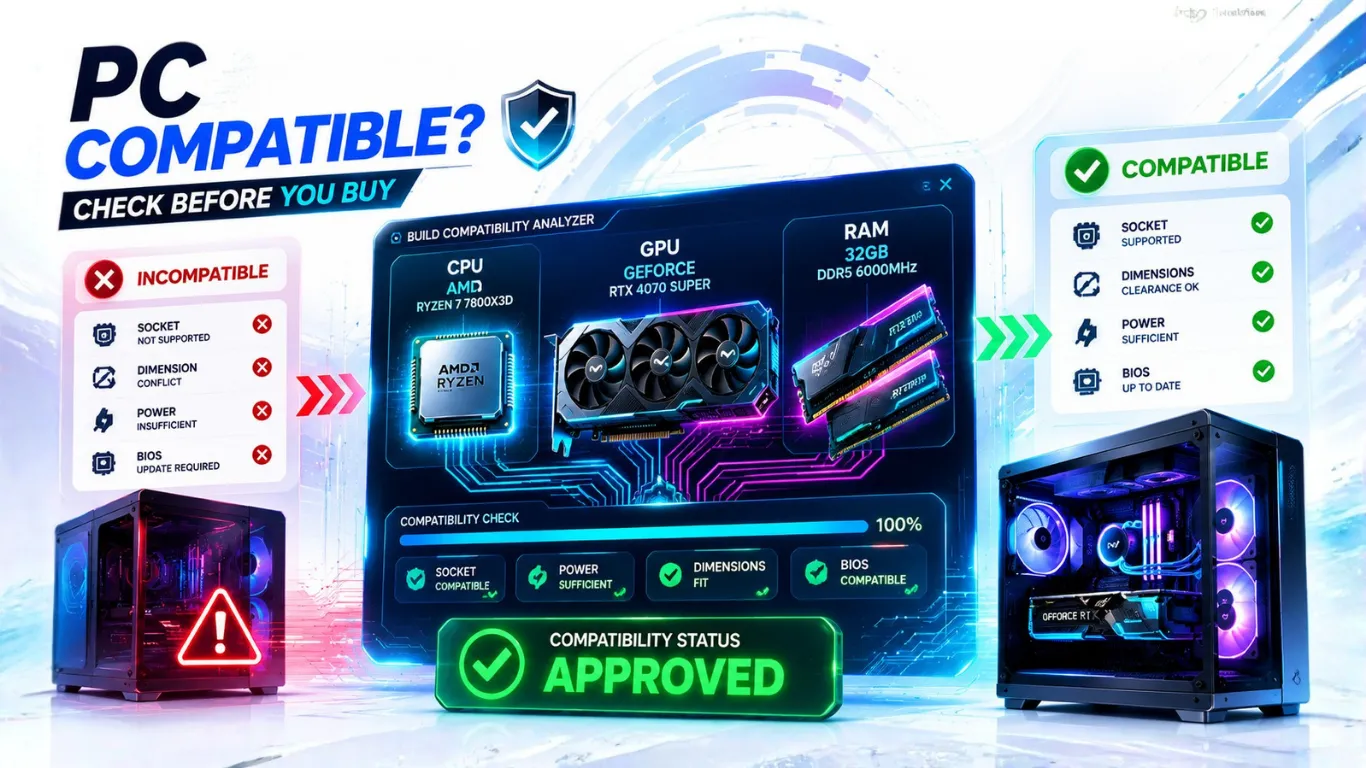
PC COMPATIBILITY CHECKER
Check if your CPU, GPU and RAM work together
Will Your PC Parts Work Together? Find Out in Seconds
Mixing and matching PC parts can be stressful, especially when you are not sure if they will play nice. This free PC compatibility checker takes the worry away. Enter your processor, graphics card, and memory, and it tells you in plain English whether your parts work together, where the real problems are, and how to fix them. It checks the things that actually matter, like memory type and power, instead of giving you a useless “all good” for everything. No sign up and no download needed.
What This PC Compatibility Checker Actually Checks
A good compatibility tool should be honest about what is a real problem and what is not. This one checks the things that genuinely affect whether your build works, and it explains each result clearly. Here is what it looks at:

- CPU and GPU match: confirms they are compatible, then warns you if one is far stronger than the other
- CPU and RAM type: the real compatibility wall, since the wrong memory type simply will not work
- Power supply size: an optional check to make sure your PSU can handle the build
- Motherboard platform: the socket your CPU needs, so you buy the right board
That mix means you get a useful answer, not a green light on everything.
The Truth About CPU and GPU Compatibility
This is the most searched compatibility question, so let us clear it up. Any modern processor works with any modern graphics card. A graphics card just needs a PCIe slot, and every motherboard has one. So a Ryzen 5 with an RTX card, or an Intel Core chip with a Radeon card, will physically work together every time.

The real question people are asking is not “will they work,” but “will they work well.” That is a balance question, not a compatibility one. A weak processor paired with a powerful graphics card will run, but the processor can hold the card back. Our checker confirms the pair is compatible and then warns you if they are badly matched, so you get the answer you actually needed. For the exact figure, the main bottleneck calculator shows you how well any CPU and GPU work as a team.
CPU and RAM Compatibility: The One That Really Matters
Here is where compatibility is a genuine wall. Your processor only supports a certain type of memory, and the wrong type will not work at all. This is the check that actually saves people from a costly mistake.
Modern memory comes in generations, and they are not interchangeable.
| Memory Type | Works With | Notes |
|---|---|---|
| DDR5 | Newest CPUs (AMD AM5, Intel 12th gen and up) | The current standard for new builds. |
| DDR4 | Many recent CPUs (AMD AM4, Intel 8th to 14th gen) | Still common and good value. |
| DDR3 | Older CPUs only | Not compatible with modern processors. |

The key rule: a CPU built for DDR5 cannot use DDR4, and the reverse is also true. Our checker flags this instantly, so you never buy the wrong memory. If it spots a mismatch, it points you to the right type to get.
How to Use the PC Compatibility Checker (Step by Step)
The whole check takes under a minute and works the same on a phone or desktop. Here is each step.

Step 1: Select your CPU (processor)
Click the CPU box and type your processor name, then pick it from the list. For example, type “5600X” for the Ryzen 5 5600X. Each result shows its socket, which is the platform your motherboard must match.
- Not sure which chip you have? On Windows, press the Windows key, type “About your PC,” and read the “Processor” line.
Step 2: Select your GPU (graphics card)
Type your graphics card in the GPU box and pick it. Remember, this will be compatible with any modern CPU, so the tool focuses on whether the pair is well balanced.
Step 3: Select your RAM (memory)
Pick your memory from the RAM box, matching its type and size. This is the most important pick, because the checker uses it to flag a memory type mismatch with your CPU.
Step 4: Add your power supply wattage (optional)
If you want a power check too, type your PSU wattage in the box, like 650. The tool will tell you if your power supply can safely handle the build. Leave it blank to skip this check.
Step 5: Press Check Compatibility and read your result
Hit the button and your results appear right away, with a clear overall verdict and a panel for each check.
How to Read Your Compatibility Result
Each check gets a simple status so you know what needs attention. Here is what they mean.
| Status | What It Means | What To Do |
|---|---|---|
| Pass | This part of your build is good to go. | Nothing. Move on. |
| Check | It works, but something is worth improving. | Read the tip and decide if it matters to you. |
| Fix | A real problem that needs a change. | Follow the fix before you buy or build. |
The overall verdict at the top sums it all up: Fully Compatible, Compatible With Cautions, or Not Fully Compatible.

Using It to Plan an Upgrade
This checker is just as useful before an upgrade as before a full build. It answers the upgrade questions people ask most:
- Adding a new graphics card? It will be compatible, so check the balance instead, to make sure your current processor can keep up.
- Upgrading your processor? Watch the platform note. A new CPU often needs a new socket and sometimes a new memory type, which means a new motherboard too.
- Buying memory? This is where the checker shines, since it stops you from buying the wrong DDR type for your CPU.

For example, a popular older chip like the Ryzen 5 3600 works with any modern graphics card you add, so your only question is whether the pair is balanced. The checker answers that, and our CPU performance hierarchy helps if you decide to upgrade the processor.
What This Tool Does Not Check
To stay honest and accurate, here is what this checker does not do. It does not confirm that a specific motherboard model fits your exact CPU, because that needs a full board database and changes often. Instead it tells you the socket your CPU uses, so you can match a board to it yourself. Always double check the socket and that the board maker lists support for your exact chip, since some older boards need an update for newer processors.
For the parts it does check, memory type, balance, and power, it gives you a clear, reliable answer. For total power planning, our PSU calculator goes deeper on wattage.
Frequently Asked Questions
Are all CPUs and GPUs compatible?
Yes. Any modern processor works with any modern graphics card, because the card just needs a PCIe slot that every motherboard has. The real question is whether they are well balanced, which this tool also checks.
How do I know if my RAM is compatible with my CPU?
Your processor supports a specific memory type, either DDR4 or DDR5, and the wrong type will not work. Enter your CPU and RAM into the checker above and it flags any mismatch instantly.
Can I mix DDR4 and DDR5 memory?
No. DDR4 and DDR5 use different slots and are not interchangeable. Your CPU and motherboard support one type, so all your memory must match that type.
Does this checker confirm my motherboard?
It tells you the socket your CPU needs so you can pick a matching board, but it does not confirm a specific motherboard model. Always check that your chosen board lists support for your exact CPU.
Will any graphics card fit my PC?
Almost always, as long as your case has room and your power supply is strong enough. The card itself is compatible with any modern CPU, so size and power are the things to check.
Is this PC compatibility checker free?
Yes, completely free with no sign up and no download. Use it as many times as you like while planning a build or an upgrade.


