
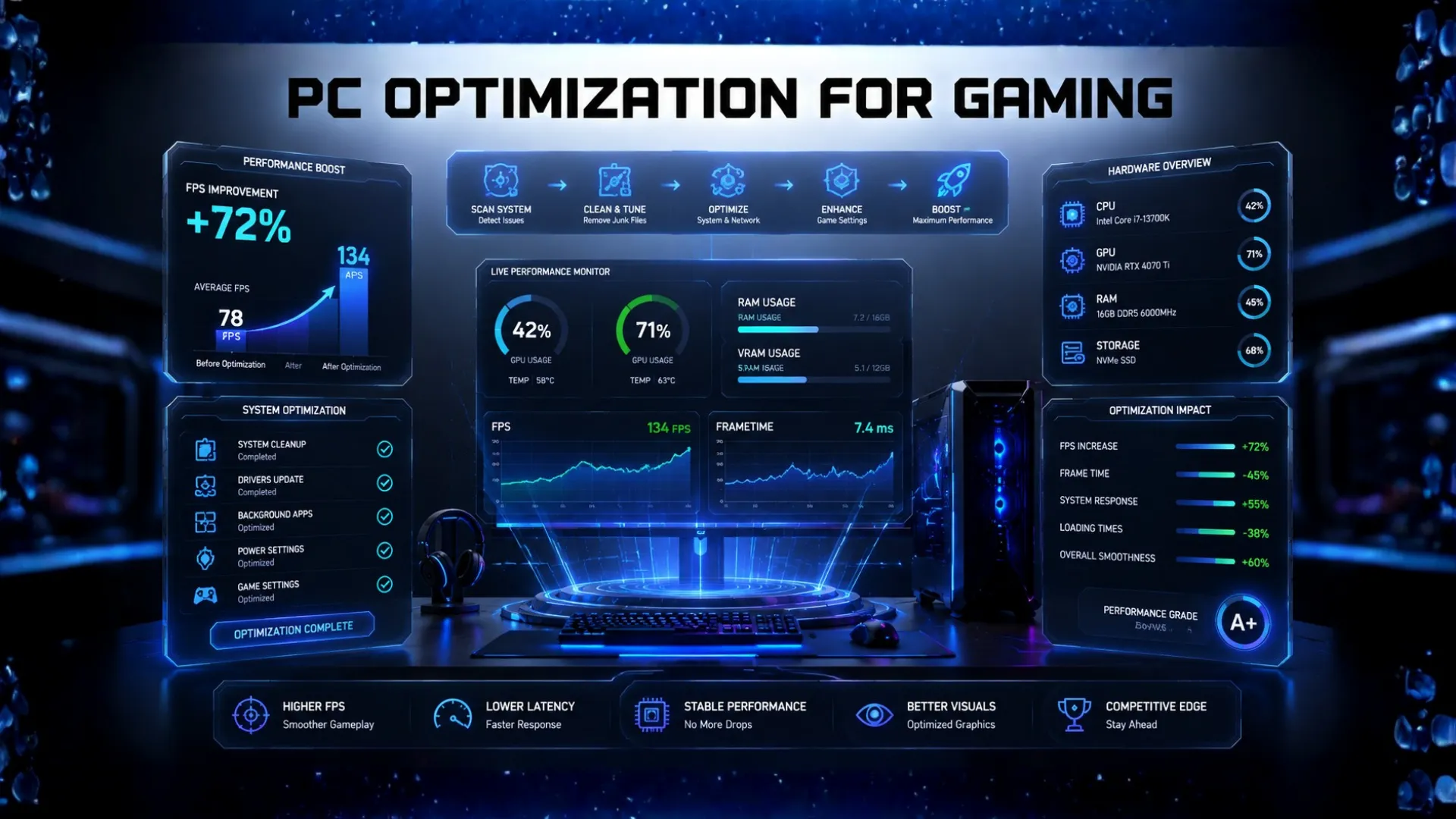
PC Optimization for Gaming: Boost Your FPS the Right Way
If your games feel slower than they should, good news: PC optimization for gaming can squeeze out more frames and smoother gameplay, often for free. You do not need sketchy “booster” software or risky tweaks.
This guide walks you through the steps that actually work, in order from the easiest free wins to the bigger moves, so you can boost your FPS safely. Whether your PC is brand new or a few years old, these steps will help it run games at its best. Let us get more out of your machine.
Start Here: Find What Is Holding You Back
Before you change anything, it helps to know where your bottleneck is. There is no point optimizing your graphics settings if your processor is the limit, or buying parts when a free tweak would do. Two quick checks point you in the right direction:
- Run your processor and graphics card through our bottleneck calculator to see which part is your weak link.
- Use the FPS calculator to see the frames your build should be getting, so you know what to aim for.
Once you know your weak point, the steps below will have the biggest effect.

The Free Wins: Optimize Your PC for Gaming at No Cost
Most performance gains cost nothing. Work through these first.
1. Update your graphics drivers
This is the single most effective free step. New graphics drivers often add real frame-rate gains in recent games. Update them from your graphics card maker’s official software, and set a reminder to check monthly.
2. Turn on upscaling in your games
Features like DLSS, FSR, and XeSS boost your frame rate with little visual loss. If a game supports one, turning it on is one of the biggest free FPS gains available.

3. Adjust your in-game settings
A few settings cost far more frames than they are worth. Lowering these gives the biggest boost for the smallest visual change:
- Shadows and ray tracing, which are very demanding.
- Anti-aliasing, which can often be reduced.
- View distance and crowd density, especially in busy games.
Here is a quick reference for which settings to lower first, ranked by how many frames you get back for the visual cost.
| Setting | FPS Gain | Visual Cost |
|---|---|---|
| Ray tracing | Very high | Noticeable, but worth it for frames |
| Shadows | High | Low, hard to spot in motion |
| View distance | High | Low to medium in most games |
| Anti-aliasing | Medium | Low, especially at higher resolutions |
| Textures | Low | High, keep these up if you have VRAM |
The rule of thumb: turn down ray tracing, shadows, and view distance first, and keep textures high as long as your graphics card has enough memory.

4. Set your power plan to High Performance
On Windows, switch your power plan so your PC is not holding back your parts to save energy. This is a quick, free boost, especially on laptops plugged in for gaming.
5. Close background apps
Programs running in the background steal resources from your game. Close browsers, chat apps, and anything you do not need before playing. Open Task Manager to see what is using the most.
6. Enable Game Mode and gaming features
Windows has a built-in Game Mode that prioritizes your game. Turn it on in Settings, and enable your monitor’s high refresh rate if it is not already active.
The Maintenance Wins: Keep Your PC Running Fast
A clean, healthy PC games better. These take a little longer but pay off.

7. Keep Windows updated
System updates include performance and compatibility fixes that help games run well. Keep Windows current.
8. Clear out junk and free up storage
A nearly full drive slows your whole PC. Delete files you do not need and clear temporary files. Games also load faster with room to breathe.
9. Check your temperatures
A hot PC slows itself down to protect the parts, which costs you frames. Make sure your case has good airflow, and clean out dust from fans and filters. If your parts run hot, that alone can drag down performance.
10. Scan for malware
Hidden malware quietly steals performance. Run a full scan with the built-in Windows Security and remove anything it finds. For more on this, see our companion guide on PC software, drivers, and maintenance.
How to Speed Up Your GPU Specifically
Since the graphics card drives your frame rate, a few steps target it directly to speed up your GPU and squeeze out more performance:
- Update the graphics driver, which often unlocks real gains in newer games. This matters most for the GPU.
- Turn on upscaling like DLSS or FSR, which lets the card render fewer pixels and boost frames.
- Keep the card cool, since a hot GPU throttles itself and loses speed. Clean dust and improve airflow.
- Enable Resizable BAR in your system settings if your card and board support it, which can add a few percent.
- Avoid running the card at a resolution it cannot handle, since a budget card at 4K will always struggle. Match the resolution to the card.

If your card is still the limit after these, it may simply be maxed out. Confirm with our GPU bottleneck calculator, which shows whether the graphics card is your weak link.
How to Test Your Gaming Performance
Optimizing works best when you measure before and after, so you can see what actually helped. Here is how to test your gaming performance simply:
- Turn on an in-game FPS counter or your graphics software’s overlay, then play a demanding scene and watch the frame rate.
- Compare against what your build should hit using our FPS calculator. If your real frames are far below the estimate, something is holding the PC back.
- Watch CPU and GPU usage while you play. If one part sits near 100 percent while the other coasts, that part is your limiter. Our guide on how to check your PC bottleneck walks through reading these numbers.
Testing this way turns guesswork into a clear before-and-after, so you know which tweaks are worth keeping.

Optimizing a Gaming Laptop
Laptops need a little extra care, since they balance heat and battery. If you game on a laptop, these steps matter most:
- Always game plugged in. On battery, a laptop throttles hard to save power, which cuts your frames dramatically.
- Set the power mode to performance in Windows and in your laptop maker’s app, which often has a dedicated gaming or turbo mode.
- Manage heat. Laptops run hot, so use a cooling pad, keep the vents clear, and play on a hard surface, not a bed or lap that blocks airflow.
- Use the dedicated graphics card. Make sure games run on the laptop’s dedicated GPU, not the weaker built-in graphics, which you can set in the graphics control panel.
These steps help a gaming laptop hold its performance during longer sessions, where heat and power limits usually bite.

When Optimization Is Not Enough: The Upgrade Path
Sometimes the parts are simply the limit, and no tweak will fix it. If you have done the steps above and still want more frames, an upgrade is the answer. The key is upgrading the right part:
- If your graphics card is the limit, a new card gives the biggest FPS jump. See our best GPU for gaming guide, or our GPU upgrade guide.
- If your processor is the limit, a faster chip helps most. See our best CPU for gaming guide, or the CPU upgrade guide.
- If your memory is short, more RAM is a cheap win. See how much RAM you need.
Confirm which part to upgrade with our bottleneck calculator first, so you spend on the right thing.

A Word on PC Optimization Software
Many people search for PC optimization software, tools, and programs. Here is the honest advice: you rarely need them, and many “PC booster” or “speed up your PC” programs do little, or even slow your PC with their own background processes.
The genuine performance tools are the ones already built into Windows, like Task Manager, Game Mode, and Windows Security, plus your graphics card maker’s own app for drivers. For checking and planning your performance, our bottleneck calculator and FPS calculator do the job free, with no download. Stick to trusted, official tools and skip the rest.

Frequently Asked Questions
How do I optimize my PC for gaming?
Start by updating your graphics drivers, turning on upscaling, and adjusting demanding settings like shadows. Then set a High Performance power plan, close background apps, and enable Game Mode. These free steps give the biggest boost.
How can I boost my FPS for free?
Update your graphics drivers, turn on DLSS or FSR upscaling, lower shadows and ray tracing, close background apps, and set your power plan to High Performance. These cost nothing and often add noticeable frames.
Do I need PC optimization software?
Usually no. Many booster programs do little or even slow your PC. The real tools are built into Windows, like Task Manager and Game Mode, plus your graphics card app for drivers. Our free calculators handle performance checks.
Why is my gaming performance bad even on a good PC?
Often it is outdated drivers, demanding settings, background apps, or overheating. Work through the free steps first. If they do not help, your processor or graphics card may be the limit, which our bottleneck calculator will confirm.
Does updating drivers really improve gaming?
Yes. Graphics driver updates often add real frame-rate gains in newer games and fix bugs. It is the single most effective free optimization step, so keep your drivers current.
How do I know if I need to upgrade instead of optimize?
If you have done the free steps and still fall short, your parts may be the limit. Run your PC through our bottleneck calculator. If it shows your graphics card or processor maxed out, an upgrade to that part is the fix.


