
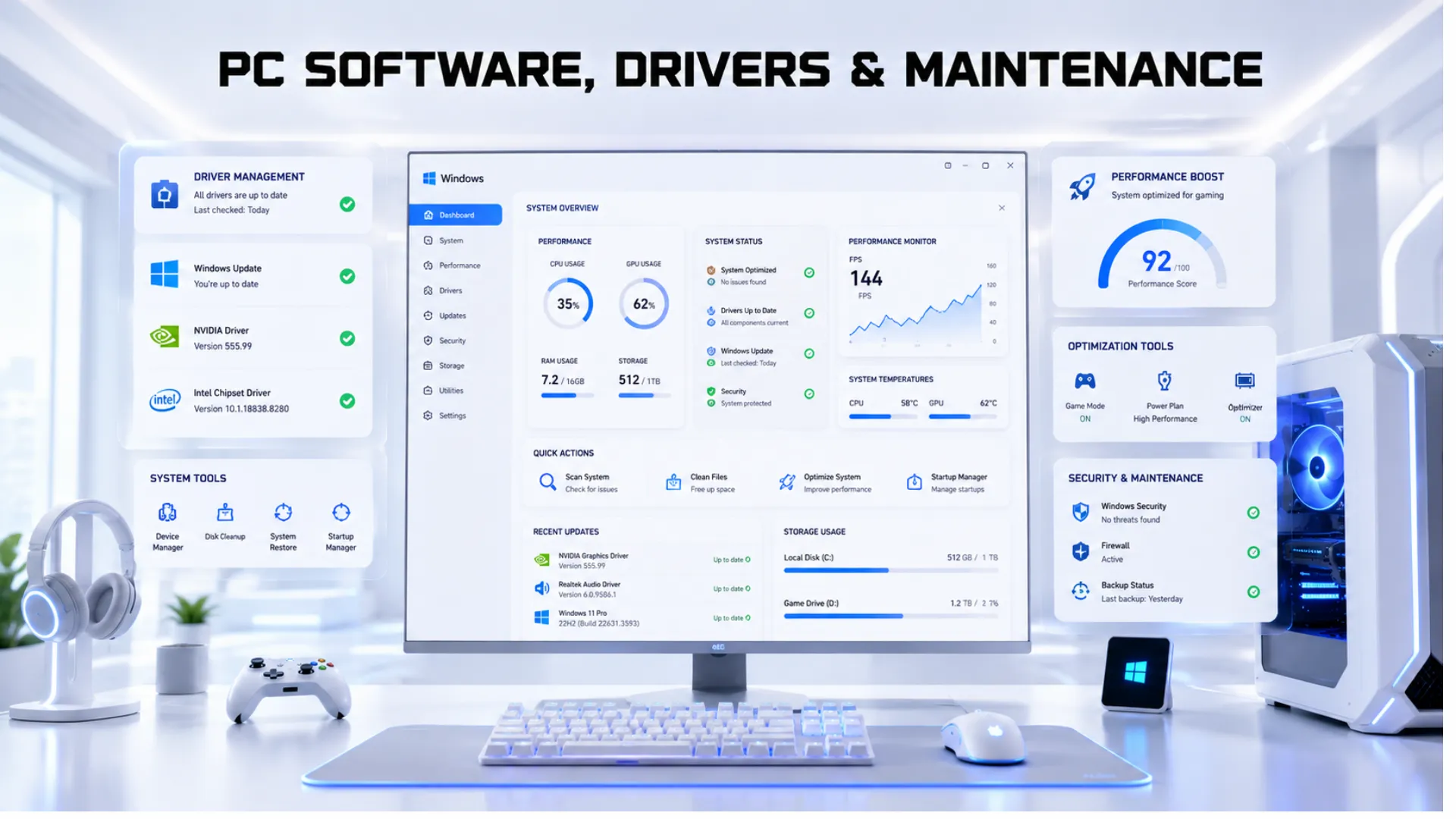
PC Software, Drivers and Maintenance: The Complete Gaming Guide
Your hardware is only half the story. The right PC software, drivers, and maintenance keep your gaming PC fast, stable, and safe, and the wrong choices can quietly drag it down.
This guide covers everything you need: the best Windows version for gaming, the safe monitoring and driver tools worth using, how to check for viruses, and a simple maintenance routine to keep your PC running like new.
No sketchy “booster” programs, just honest advice on the software that actually helps. Let us get your PC in top shape.
The Best Windows Version for Gaming
A common question is which operating system is best for a gaming PC, and whether to use Windows 10 or Windows 11. Here is the straight answer for 2026.

Windows 11 is the best choice for gaming today. It includes gaming features that genuinely help, and as games and drivers move forward, they are built and tested for Windows 11 first. Windows 10 still works for gaming, but its support is winding down, so new builds should use Windows 11.
| Windows Version | Best For | Verdict |
|---|---|---|
| Windows 11 | New gaming builds in 2026 | The recommended choice, with the latest gaming features. |
| Windows 10 | Older PCs still running it | Still works, but support is ending. Plan to move on. |
Whichever you use, the bigger performance factor is keeping it updated and tuned, which our PC optimization for gaming guide covers in full.
Graphics Drivers: The Most Important Software to Keep Updated
If you only maintain one piece of software, make it your graphics drivers. New graphics drivers regularly add real frame-rate gains in recent games and fix bugs, so keeping them current is the single most valuable software habit for a gamer.
The safe way to update drivers is simple:
- Use your graphics card maker’s official app. It detects your card, installs the right driver, and keeps it current.
- Avoid third-party “driver update tools.” Many are unnecessary or bundle unwanted extras. The official app and Windows Update cover what you need.
- Update chipset and other drivers from your motherboard maker’s site when needed, especially after a fresh Windows install.

So when you search for a driver update tool, the honest answer is that the official app from your graphics card maker is the only one you need.
Safe CPU and GPU Monitoring Software
Monitoring software lets you see how hard your parts are working, their temperatures, and your frame rate. This is genuinely useful for spotting problems and testing performance. The good news is that you do not need anything sketchy.
- Task Manager is built into Windows and shows CPU, memory, and GPU usage live. Press Ctrl, Shift, and Escape, then the Performance tab.
- Your graphics card maker’s app includes an overlay for frame rate, temperatures, and usage while you game.
- Trusted free monitoring tools from well-known sources can show detailed temperatures and clock speeds if you want more depth.

Use monitoring to see if your CPU or GPU is the limiter. When one sits near 100 percent while the other coasts, you have found your bottleneck. Our bottleneck calculator confirms the match, and our guide on how to check your PC bottleneck explains reading the numbers.
How to Check Your PC for Viruses
Malware is a quiet performance killer and a real security risk, so checking for viruses is part of good maintenance. The reassuring part is that you do not need to buy anything.
- Windows Security is built in and effective. Press the Windows key, type Windows Security, open it, choose Virus and threat protection, and run a full scan.
- Remove anything it flags, then restart your PC.
- Run a scan if your PC suddenly slows down, runs hot at idle, or behaves strangely, since hidden malware often causes these.

For most people, the built-in Windows Security plus safe browsing habits are all the protection needed. If high resource use is your concern, our guide on high CPU usage covers finding and fixing what is overworking your PC.
A Simple PC Maintenance Routine
Keeping a gaming PC healthy takes only a little regular care. Here is a simple routine that keeps everything running fast:
- Monthly: update your graphics drivers and install Windows updates.
- Monthly: clear temporary files and check you have free storage space, since a full drive slows everything.
- Every few months: clean dust from your fans and filters, since heat throttles performance.
- As needed: run a full virus scan if your PC slows down or acts strangely.
- Occasionally: review startup programs in Task Manager and disable ones you do not need, so your PC boots and runs leaner.

This small routine prevents most of the slowdowns people blame on aging hardware, when the real cause is neglected maintenance.
A Word on Gaming Software and “Heavy” Programs
People often search for gaming software, PC programs, and which heavy software slows a PC. The honest guidance is to keep your PC lean. Install the games and tools you actually use, and avoid piling on background programs, since each one running at startup uses resources.
The same goes for so-called optimization or booster software, which often does more harm than good. For light creative work, free and built-in tools handle most needs without a heavy, resource-hungry program. The leaner your PC, the better it games.

When Software Is Not the Problem
Sometimes you have updated everything, cleaned up, and scanned for malware, and your PC still falls short. At that point, the limit is usually the hardware itself. To find out, run your parts through our bottleneck calculator and estimate your target frames with the FPS calculator.
If a part is maxed out, an upgrade is the fix: see our guides to the best CPU for gaming and best GPU for gaming. And for the full set of free speed-ups before you spend, our PC optimization for gaming guide has every step.

Frequently Asked Questions
Is Windows 11 better than Windows 10 for gaming?
Yes, Windows 11 is the better choice for gaming in 2026, with helpful gaming features and first priority for new games and drivers. Windows 10 still works, but its support is ending, so new builds should use Windows 11.
What is the best software to monitor my CPU and GPU?
The built-in Task Manager shows CPU, memory, and GPU usage live, and your graphics card maker’s app adds an in-game overlay for temperatures and frame rate. Trusted free tools can show more detail if you want it. You do not need paid software.
Do I need a driver update tool?
No. The official app from your graphics card maker detects your card and keeps drivers current, which is all you need. Avoid third-party driver update tools, since many are unnecessary or bundle unwanted extras.
How do I check my computer for viruses?
Open Windows Security by pressing the Windows key and typing it, choose Virus and threat protection, and run a full scan. It is built in and effective. Remove anything it flags, then restart. You do not need to buy antivirus software for most use.
Does maintenance really improve PC performance?
Yes. Updated drivers, free storage, low temperatures, and no malware keep a PC running fast. Many slowdowns blamed on old hardware are actually neglected maintenance, which a simple monthly routine prevents.
What software slows down a gaming PC?
Background programs that run at startup, unnecessary booster or cleaner tools, and heavy resource-hungry apps all steal performance. Keep your PC lean, install only what you use, and disable startup programs you do not need.


