
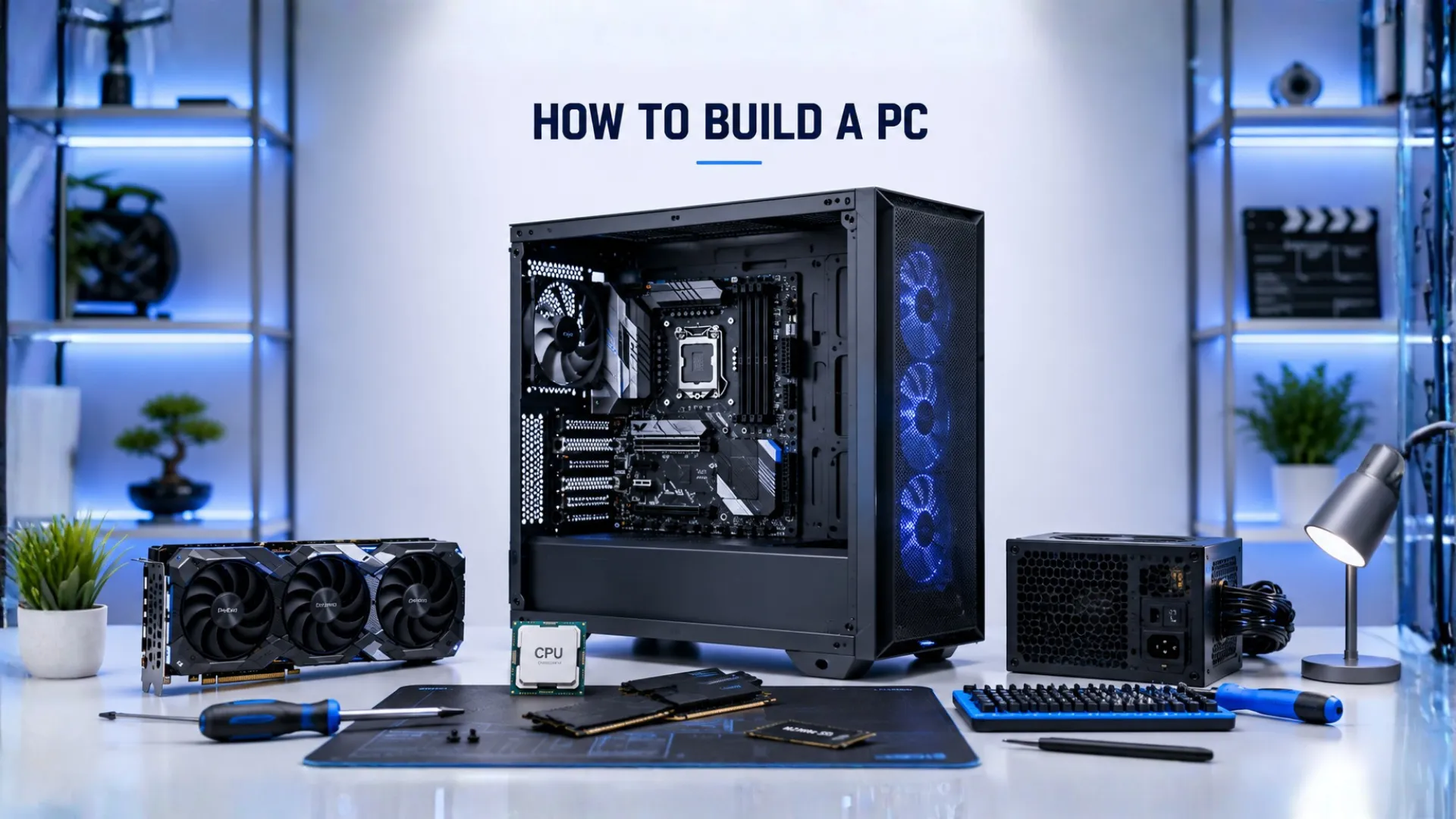
How to Build a PC: A Step-by-Step Guide for Beginners
Learning how to build a PC is far easier than most people expect. If you can follow instructions and use a screwdriver, you can build your own computer. The parts only fit one way, so it is more like advanced building blocks than electronics.
This guide walks you through the whole process, from planning your parts to the first time you press the power button. We keep it beginner friendly, with no jargon. By the end, you will have a working PC you built yourself, and the satisfaction that comes with it. Let us get started.
Before You Build: Plan Your Parts
A successful build starts before any assembly. First, decide what you need and make sure the parts work together. If you are new to the components, our PC parts explained guide covers every part and what it does.

The golden rule of planning is compatibility. The two most common mistakes are a processor that does not fit the motherboard, and the wrong memory type. Avoid both by checking your parts before you buy:
- Confirm your CPU, motherboard, and memory all match with our PC compatibility checker.
- Make sure your power supply is big enough for your parts with our PSU calculator.
- Check that your processor and graphics card are balanced with our bottleneck calculator, so neither holds the other back.
Planning this way means no nasty surprises when your parts arrive.
What You Will Need
Gather these before you start, so you are not stopping halfway:
- All your PC parts: CPU, GPU, RAM, motherboard, storage, power supply, case, and CPU cooler.
- A Phillips screwdriver, ideally magnetic.
- A clean, well-lit, flat workspace.
- A little patience for your first build. Take your time.
Work on a hard surface rather than carpet, and touch a metal part of the case now and then to discharge static, which protects your parts.

How to Build a PC, Step by Step
Here is the assembly order that makes building easiest. Following this sequence means you are never fighting for space.
Step 1: Install the CPU on the motherboard
Take the motherboard out of its box and rest it on the box itself. Release the CPU socket lever, line up the marker on the processor with the marker on the socket, and lower it in gently. It only fits one way, so never force it. Close the lever to lock it.

Step 2: Install the RAM
Find the memory slots. For two sticks, the board usually wants them in slots 2 and 4, but check your motherboard manual. Open the clips, line up the notch on the stick, and press firmly until the clips snap shut. This matched-pair setup runs faster, as our RAM buying guide explains.
Step 3: Install storage (M.2 SSD)
If you have a modern M.2 SSD, install it on the motherboard now while there is easy access. Slot it into the M.2 connector at an angle, press it flat, and secure it with its small screw.
Step 4: Mount the CPU cooler
Apply a small dot of thermal paste on the processor if your cooler does not have it pre-applied. Then attach the cooler following its instructions, and plug its fan cable into the CPU fan header on the motherboard.
Step 5: Install the motherboard in the case
Place the case on its side. Fit the input and output shield if it is separate, then lower the motherboard onto the standoffs and screw it down. Do not overtighten the screws.

Step 6: Install the power supply
Mount the power supply in its spot in the case, usually the bottom, and screw it in. If it is a modular unit, attach only the cables you need to keep the inside tidy.
Step 7: Connect the cables
This is the fiddliest step, so go slowly. Connect the large 24-pin motherboard cable, the CPU power cable near the top, the case buttons and front panel connectors, and any case fans. Your motherboard manual shows where each one goes.
Step 8: Install the graphics card
Save the graphics card for near the end, since it takes up the most room. Remove the matching slot covers on the case, press the card firmly into the top PCIe slot until it clicks, screw it to the case, and connect its power cables.

Step 9: First boot
Plug in your monitor, keyboard, and power. Press the power button. If the fans spin and you see the motherboard logo on screen, congratulations, your PC works. If not, see the troubleshooting tips below.
Step 10: Install Windows and drivers
Install Windows from a USB drive, then update your graphics drivers from the maker’s official app. Your PC is now ready to use. Our PC software, drivers, and maintenance guide covers setting it up right.
If It Does Not Turn On: Quick Troubleshooting
Do not panic if the first boot fails. It is usually something simple:
- Nothing happens at all. Recheck the 24-pin and CPU power cables, and the power button connector. A loose cable is the most common cause.
- Fans spin but no display. Make sure your monitor is plugged into the graphics card, not the motherboard. Reseat the RAM and the graphics card.
- It powers on then off. Check the cooler is properly seated and its fan is plugged in.
Reseating the memory and graphics card fixes a large share of first-boot problems.

What Does It Cost to Build a PC?
Building a PC can cost anywhere from a budget amount for a capable 1080p machine to a premium for a high-end 4K build. The biggest costs are usually the graphics card and processor. Building yourself saves the assembly markup that prebuilt PCs charge, and lets you choose every part. For specific builds at each price, see our gaming PC build guides, which lay out full parts lists by budget and resolution.
Building Online: PC Builder Tools and Part Pickers
Many people search for a PC builder online or a way to build a PC on a website before buying. These part-picker tools let you choose components and flag basic compatibility, which is helpful for planning. They are a good starting point, but always double-check the important matches yourself, since a processor must fit the motherboard socket and the memory type must be right. Our PC compatibility checker confirms these key points, and our PSU calculator sizes your power supply, so your planned build will actually work when the parts arrive.

Frequently Asked Questions
Is it hard to build a PC?
No. If you can follow instructions and use a screwdriver, you can build a PC. The parts only fit one way, so it is more like advanced building blocks than electronics. Take your time on your first build and it goes smoothly.
What order do I build a PC in?
Install the CPU, RAM, and SSD on the motherboard first, then the cooler. Next mount the motherboard and power supply in the case, connect the cables, and install the graphics card last. Then do the first boot and install Windows.
How long does it take to build a PC?
A first build usually takes two to four hours if you go carefully. Experienced builders do it in under an hour. There is no need to rush, since taking your time avoids mistakes.
Is building a PC cheaper than buying one?
Often yes, since you save the assembly markup that prebuilt PCs charge, and you choose every part. You also get exactly the build you want and learn how your PC works, which makes upgrades and repairs easier later.
What do I do if my PC will not turn on after building?
Most first-boot issues are simple. Recheck the power cables and the power button connector, make sure your monitor is plugged into the graphics card, and reseat the RAM and graphics card. These fix the large majority of problems.
Do I need a graphics card to build a PC?
Only if you want strong gaming. Some processors include built-in graphics for everyday use, but for real gaming you want a dedicated graphics card, since it drives your frame rate. Check the balance with our bottleneck calculator.


