
How to Check Your PC Specs (No Tech Skills Needed)
Need to know what is inside your computer? Maybe you want to run a game, plan an upgrade, or check a part before you buy. Whatever the reason, learning how to check your PC specs takes only a minute, and you do not need any tech skills.
This guide shows you the exact steps to find your processor, graphics card, memory, and more, on both Windows and Mac. We will start with the fastest no-software methods, then cover free programs for deeper detail. By the end you will know your full build.
What Counts as Your PC Specs
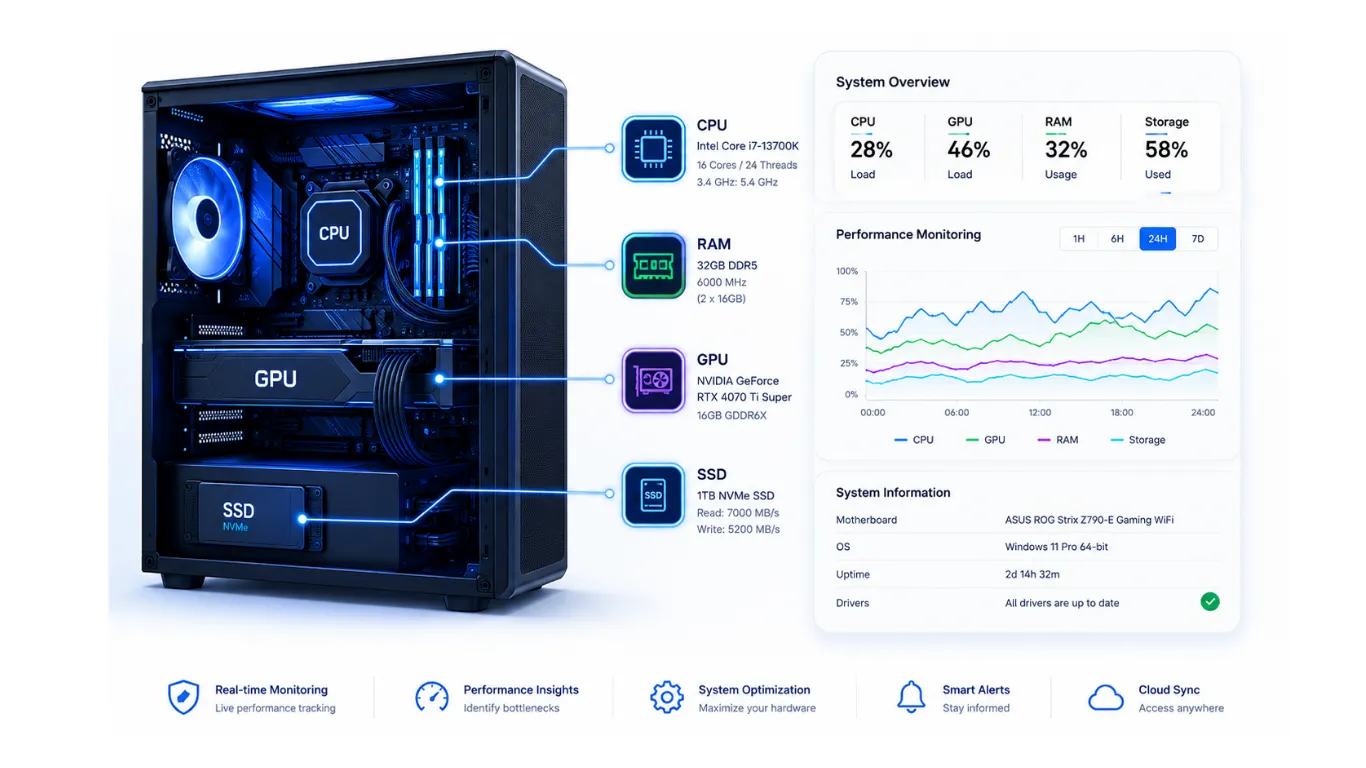
Before we find them, here is a quick look at the main specs that matter and what each one does. These are the parts people check most often.
| Spec | What It Is | Why You Check It |
|---|---|---|
| CPU (processor) | The brain of your PC | Sets overall speed and game performance. |
| GPU (graphics card) | Draws the visuals | The biggest factor in your gaming FPS. |
| RAM (memory) | Short-term work space | Affects smoothness and multitasking. |
| Storage | Where files are saved | Decides space and load times. |
| Windows version | Your operating system | Some games and apps need a certain version. |

How to Check Your PC Specs on Windows (No Software)
Windows has the answers built in. Here are the quickest ways, starting with the simplest.

The fastest way: the About page
This shows your processor and memory in a few clicks.
- Press the Windows key, then type About your PC and open it.
- Look at the Device specifications section.
- You will see your Processor (CPU) and Installed RAM listed right there.
The full picture: System Information
For a deeper look at almost every part, use the built-in System Information tool.
- Press the Windows key, type System Information, and open it.
- The main page lists your processor, memory, system model, and Windows version.
- Click Components, then Display to see your graphics card (GPU).
The gamer favorite: DirectX Diagnostic Tool
This one is great because it shows your CPU, RAM, and GPU all in one place.
- Press the Windows key, type dxdiag, and press Enter.
- The System tab shows your processor and memory.
- The Display tab shows your graphics card and its memory.
Quick check: Task Manager
Task Manager is handy because it shows your parts and how hard they are working.

- Press Ctrl, Shift, and Escape together to open Task Manager.
- Click the Performance tab.
- You will see your CPU, Memory, and GPU with live usage, plus the exact model names.
How to Check Your PC Specs on a Mac
On a Mac it is even quicker.

- Click the Apple menu in the top left corner.
- Choose About This Mac.
- You will see your chip or processor, memory, and macOS version.
- For more detail, click More Info or System Report to see graphics and storage.
Free Programs for Deeper PC Specs
The built-in tools cover most needs, but if you want extra detail like your exact memory speed or motherboard model, a couple of trusted free programs help. Use these when you need more than the basics.
- A free system information program can show your motherboard, memory speed, and detailed CPU info in one window.
- A free graphics card information program shows your exact GPU model, memory, and clock speeds.
- Your graphics card maker’s own app also lists your card and keeps its drivers updated.
A safety tip: only download these from the maker’s official website, and avoid random download sites that bundle extra junk. You rarely need software at all, since the built-in tools above answer most questions.
How to Check Your PC Performance (Not Just the Names)
Knowing your part names is step one. Many people also want to know how fast their PC actually is, or whether it is running its best. That is a performance question, and it is a little different from simply identifying your parts.

- To see how your processor and graphics card stack up and whether they are well matched, use our bottleneck calculator.
- To estimate how many frames your PC will hit in a specific game, try our PC build performance calculator.
- To watch live performance, open Task Manager and the Performance tab while you game, and see how hard each part works.
These give you the real story behind the numbers, not just the model names.
Now That You Know Your Specs
Finding your specs is usually the first step toward a bigger goal. Here is where to go next, depending on what you are trying to do.
- Planning an upgrade? Check if your parts are well matched with the bottleneck calculator, so you upgrade the right part.
- Wondering if a game will run well? Estimate your frames with the FPS calculator.
- Building or changing parts? Make sure they work together with the PC compatibility checker.
- Buying a new power supply? Size it right with the PSU calculator.
Frequently Asked Questions
How do I check my PC specs on Windows?
The fastest way is to press the Windows key, type “About your PC,” and open it to see your processor and memory. For your graphics card, type “dxdiag” and check the Display tab.
How do I find out what graphics card I have?
Open the DirectX Diagnostic Tool by typing “dxdiag” after pressing the Windows key, then click the Display tab. You can also open Task Manager, go to Performance, and select GPU.
How do I check my CPU model?
Press the Windows key, type “About your PC,” and read the Processor line. On a Mac, click the Apple menu and choose About This Mac to see your chip.
Do I need software to check my PC specs?
No. Windows and Mac both show your main specs with no extra software. You only need a free program if you want deeper detail like exact memory speed or your motherboard model.
How do I check if my PC is fast enough for a game?
First find your CPU and GPU using the steps above, then enter them into our FPS calculator to estimate your frames in that game. It tells you what to expect before you buy.
How can I see my PC performance live?
Open Task Manager by pressing Ctrl, Shift, and Escape, then click the Performance tab. It shows your CPU, memory, and GPU usage in real time as you use your PC.


