
What Size Power Supply Does Your PC Need?
Picking a power supply is one of the easiest parts of a build to get wrong, and one of the most important to get right. Too small and your PC crashes or will not turn on. Too big and you waste money.
PSU CALCULATOR
Find the right power supply wattage for your PC build
This free PSU calculator takes the guesswork out of it. Pick your processor, graphics card, and the rest of your parts, and it gives you a safe wattage with the right amount of headroom in seconds. You also get the recommended 80 Plus efficiency rating, so you know exactly what to buy. No sign up and no download needed.
[Scroll up and try the calculator now, or read the quick guide below first.]
Why Your Power Supply Wattage Matters
The power supply, or PSU, feeds clean power to every part in your PC. Getting the wattage right protects your whole system and your wallet. Here is why it is worth a minute of your time:

- A PSU that is too small can cause crashes, random shutdowns, or a PC that will not boot under load.
- A PSU that is far too big is money spent on watts you will never use.
- The right size runs in its efficiency sweet spot, stays quieter and cooler, and leaves room for a future upgrade.
Our PSU calculator aims for that sweet spot on purpose, so you get a unit that is safe today and ready for tomorrow.
How to Use the PSU Calculator (Step by Step)
The whole thing takes well under a minute. Here is each step explained clearly, so your result is as accurate as possible. It works the same on a phone, tablet, or desktop.

Step 1: Select your CPU (processor)
Click the CPU box and start typing your processor name, then pick it from the list. For example, type “5600X” for the Ryzen 5 5600X or “13600K” for the Intel Core i5-13600K.
- Not sure which chip you have? On Windows, press the Windows key, type “About your PC,” and read the “Processor” line.
- Pick the exact model, including letters like X, K, or F, since they change power use.
- Each pick shows its power draw in watts next to the name, so you can see what it adds.
Step 2: Select your GPU (graphics card)
Now do the same in the GPU box for your graphics card. The graphics card is usually the single biggest power draw in a gaming PC, so this choice matters most.
- Match the exact memory version if there are two, like the 8GB or 16GB model.
- The list stays current with new cards like the RTX 5070 Ti, RX 9060 XT 16GB, and RX 9070 XT.
Step 3: Set your other parts
Use the simple plus and minus buttons to match the rest of your build. These add up to real watts, so a quick, honest count gives you a better result.
- RAM sticks: how many memory modules you have, usually 2.
- SSD drives: your solid-state drives.
- Hard drives (HDD): any spinning hard drives, which use more power than SSDs.
- Case fans: how many fans you run.
Step 4: Choose if you overclock
If you push your processor or graphics card beyond their stock speeds, set Overclocking to “Yes.” This adds extra power headroom to the estimate. If you are not sure, leave it on “No,” which is right for most people.
Step 5: Press Calculate and read your result
Hit the button and your result appears right away. Read it using the next section as your guide.
How to Read Your PSU Result
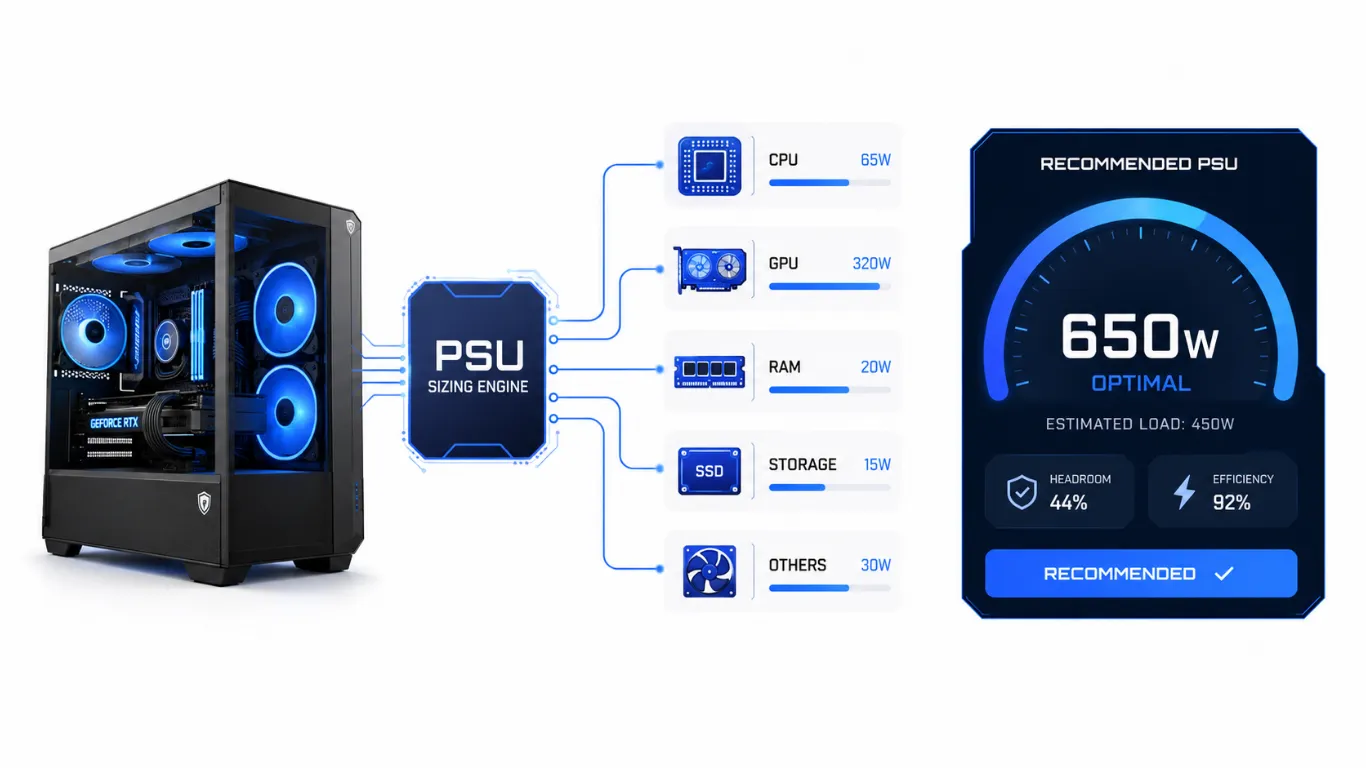
Your result is built to be clear at a glance. Here is what each part of it means.
| Result Part | What It Means |
|---|---|
| Recommended PSU | The power supply wattage to buy, with safe headroom already included. |
| Estimated Load | How many watts your parts actually pull at full tilt. |
| PSU Size | The next sensible PSU size up from your load. |
| Headroom | The spare room left over for spikes and future upgrades. |
| 80 Plus rating | The efficiency tier to look for, like Bronze or Gold. |

The “where your power goes” breakdown then shows which parts use the most watts. In most gaming PCs the graphics card leads by a wide margin, followed by the processor.
How Much Headroom Should a Power Supply Have?
A common question is why the tool suggests more watts than your parts actually use. The extra is called headroom, and it is there for good reasons:

- Parts briefly spike above their normal draw, and the PSU must handle those spikes.
- A power supply runs most efficiently at around half to two thirds of its rated load, not maxed out.
- Headroom leaves room to add a stronger graphics card later without buying a new PSU.
As a simple rule, sizing so your system uses roughly 50 to 70 percent of the PSU is the safe, efficient zone. Our calculator builds this in for you, so the recommended number is ready to buy.
What the 80 Plus Rating Means
You will see PSUs labeled 80 Plus Bronze, Gold, and higher. This rating is about efficiency, which is how little power the unit wastes as heat. A more efficient PSU runs cooler, quieter, and costs a little less to run over time. Here is the short version.
| 80 Plus Rating | Best For | Why |
|---|---|---|
| Bronze | Budget and entry builds | A solid, affordable choice for lower-power PCs. |
| Gold | Most gaming builds | The best balance of price, efficiency, and value. |
| Platinum or Titanium | High-end and always-on PCs | Top efficiency for powerful or hard-working systems. |

For most gaming PCs, a quality 80 Plus Gold unit is the smart pick. Our calculator suggests the right tier based on how much power your build draws.
Smart Tips Before You Buy a Power Supply
Wattage is only part of the story. A few quick tips to buy well:
- Choose a trusted brand. A cheap, no-name PSU is the one part you should never cut corners on.
- Match the recommended wattage or go one size up if you plan a graphics card upgrade soon.
- Look for the right cables for your card, since the newest high-end GPUs use a 12-pin connector.
- A modular PSU lets you use only the cables you need, which makes your build cleaner.

If you are still choosing your parts, our main bottleneck calculator helps you match a balanced CPU and graphics card first, and our PC build performance calculator estimates the FPS that build will deliver.
Frequently Asked Questions
What size power supply do I need?
Enter your processor, graphics card, and parts into the calculator above, and it gives you a safe wattage with headroom included. For most gaming PCs the answer lands between 550W and 850W.
Is a higher wattage power supply always better?
No. A PSU that is far bigger than your build needs is wasted money, and it does not make your PC faster. The goal is the right size with sensible headroom, not the biggest number.
What does the 80 Plus rating mean?
It measures how efficiently a power supply turns wall power into usable power, wasting less as heat. Gold is the popular choice for gaming PCs because it balances price and efficiency well.
Does a bigger power supply use more electricity?
No. Your PC only draws the power it needs, no matter the PSU size. A bigger unit does not raise your bill, though a more efficient one wastes slightly less.
How much headroom should my PSU have?
Sizing so your system uses about 50 to 70 percent of the PSU is the safe, efficient zone. The calculator builds this headroom into the recommended wattage for you.
Do I need a bigger PSU if I overclock?
Yes, a little. Overclocking raises power use, so set the Overclocking option to “Yes” in the calculator and it adds the extra headroom you need.
Similar Posts
PC Compatibility Checker: Do Your Parts Work Together?
bottleneckcalculator.tech PC COMPATIBILITY CHECKER Check if your CPU, GPU and RAM work together 1. Select CPU v 2. Select GPU v 3. Select RAM v 4. Power Supply Wattage (optional, for a power check) Check…
FPS Calculator: Check Your PC Build Performance 2026
See How Your PC Will Perform Before You Spend a Cent Wondering how many frames your PC can really push in your favorite game? This free FPS calculator gives you a clear answer in seconds….
How to Check Your PC Specs (Windows and Mac) 2026
How to Check Your PC Specs (No Tech Skills Needed) Need to know what is inside your computer? Maybe you want to run a game, plan an upgrade, or check a part before you buy….


