
Is Your Graphics Card the Weak Link? Check and Fix a GPU Bottleneck
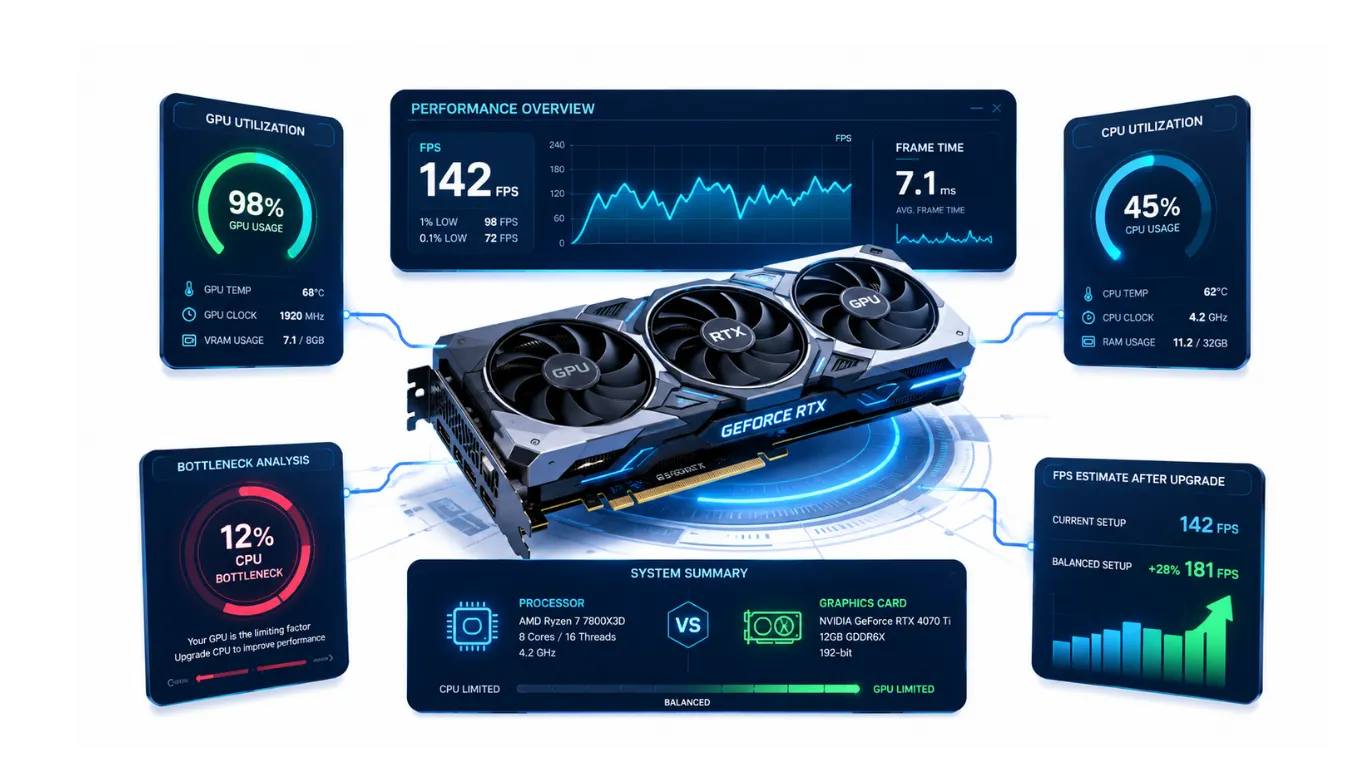
When your graphics card cannot keep up with the rest of your PC, your frame rate drops and your games feel less smooth than they should. This is a GPU bottleneck, and it is very common at higher resolutions and settings. This free GPU bottleneck calculator checks your graphics card against your processor in seconds, tells you if the card is the weak link, and shows you how to fix it without wasting money. Pick your parts, set your resolution, and get a clear answer. No sign up and no download needed.
[Run the BNC calculator below to check your graphics card now.]
What Is a GPU Bottleneck?
A GPU bottleneck happens when your graphics card cannot draw the visuals fast enough to match what your processor is ready to send. Your processor has more to give, but the card is working as hard as it can, so your frame rate is capped by the card.

This is actually normal and often healthy in games. When you turn up the resolution and graphics settings, you want the card working at full effort. A GPU bottleneck only becomes a problem when the card is so far behind your processor that your frames suffer. If the basics are new to you, our guide on what a PC bottleneck is and why it happens explains it in simple words.
How to Use the GPU Bottleneck Calculator
BOTTLENECK CALCULATOR
Detect CPU, GPU & RAM bottlenecks · 400+ components · Free & Accurate
Your Build Breakdown
Upgrade Recommendations
The tool is quick and works on phones and desktops. Here is all you do.
Step 1: Choose your GPU
Type your graphics card name and pick it from the list. The tool keeps over 400 cards on file, including new ones like the RTX 5070 Ti, RX 9060 XT 16GB, and RX 9070 XT.
Step 2: Choose your CPU
Add your processor in the CPU box. A GPU bottleneck only shows up next to the processor that feeds it, so the tool compares the two.
Step 3: Set resolution and workload, then check
Pick your resolution and main task, then press the button. The result shows if your graphics card is the weak link and how big the gap is.

Signs Your GPU Is the Bottleneck
Your PC gives clear hints when the graphics card is the part holding you back. The most common signs are easy to spot:

- Your graphics card sits near 100 percent usage while your processor coasts at a lower number
- Your frame rate drops the most when you raise the resolution or graphics settings
- Lowering the settings gives you a big FPS jump
- The game looks demanding and detailed, and your card struggles to keep pace
- Your processor has plenty of headroom but your frames still feel capped
Remember that a graphics card near full usage in games is usually a good thing. It only points to a problem when the gap between your card and your processor is large. To learn which numbers are normal, see our guide on acceptable bottleneck percentage.
GPU Bottleneck in GPU-Intensive Games
Some games lean far harder on the graphics card than the processor, and that is where a GPU bottleneck shows up most. These are usually the pretty, detailed games with heavy lighting and effects, played at high resolution. Here is what tends to push the card hardest:
- High resolutions like 1440p and 4K, which ask the card to draw far more detail
- Demanding effects such as ray tracing, high shadows, and anti-aliasing
- Large open worlds with dense scenery and long view distances
- Maxed-out graphics presets that turn every setting up
In these cases the fix is often free. Lowering a few heavy settings or using a built-in upscaling feature can give the card breathing room. The calculator lets you test different resolutions so you can see the effect before you change anything.
How to Fix a GPU Bottleneck
This is what most people came for, so here is a clear plan from free fixes to upgrades. Try the top rows first.
| Fix | Cost | How It Helps |
|---|---|---|
| Lower your resolution | Free | Asks the card to draw less, lifting your frame rate. |
| Lower heavy graphics settings | Free | Less ray tracing and shadows frees up the card. |
| Turn on upscaling | Free | Built-in upscaling boosts frames with little visual loss. |
| Update your graphics drivers | Free | New drivers can add real performance in newer games. |
| Upgrade to a stronger GPU | Paid | The real fix when the card is simply too slow. |

If a free fix is not enough, a stronger graphics card is the true cure. Before you buy, see our picks for the best graphics cards for gaming to find a card that matches your processor. After any change, run the check again and watch the gap shrink.
Signs Your GPU Is the Bottleneck vs the Processor
It is easy to mix up a GPU bottleneck with a CPU bottleneck, so here is the quick difference.
| Clue | GPU Bottleneck | CPU Bottleneck |
|---|---|---|
| Usage | Card near 100%, processor lower | Processor near 100%, card lower |
| When it is worst | High resolution and settings | Low resolution, fast competitive games |
| Best free fix | Lower settings or resolution | Raise resolution to shift load |
To see both parts side by side and learn which to upgrade first, use our CPU and GPU bottleneck calculator. For a whole-system view that adds memory too, the main bottleneck calculator on our homepage checks every part at once.

A Few Special Cases
Some setups raise common questions, so here are quick honest answers.
- Integrated graphics, or no separate card: a built-in graphics chip is much weaker than a dedicated card, so it is almost always the limit in modern games. The fix is a dedicated graphics card.
- External GPU (eGPU): an external card connected to a laptop can lose some speed through the connection, so expect a slightly lower result than the same card inside a desktop.
- Two graphics cards: running two cards together is mostly outdated for gaming now, since most modern games use only one. A single stronger card is the better choice.
- Motherboard: as long as your board supports your card, it does not cause a frame-rate bottleneck, so the calculator focuses on the parts that actually move your FPS.
Frequently Asked Questions
What is a GPU bottleneck?
It is when your graphics card cannot draw visuals fast enough to match your processor, so your frame rate is capped by the card. In games, this is common and often normal at high settings.
How do I check for a GPU bottleneck?
Enter your graphics card and processor into the calculator above, set your resolution and workload, and press the button. The result shows if the card is the weak link.
Is a GPU bottleneck bad?
Not always. A graphics card working near full effort in games is usually healthy. It is only a problem when the card is far weaker than your processor and your frames suffer.
How do I fix a GPU bottleneck?
Start free: lower your resolution or heavy settings, turn on upscaling, and update your drivers. If that is not enough, upgrade to a stronger graphics card that matches your processor.
Can I check a bottleneck without a graphics card?
Yes. If you use integrated graphics, select it in the tool. A built-in chip is much weaker than a dedicated card, so it is usually the limit in modern games.
Does lowering settings really fix a GPU bottleneck?
Yes. Lower settings and resolution ask the card to do less work, which raises your frame rate right away. It is the fastest free way to ease a GPU bottleneck.
Similar Posts
What Is a PC Bottleneck? Simple Guide for 2026
PC Bottlenecks Explained: What They Are and Why They Slow You Down? So what is a PC bottleneck, really? In plain words, a bottleneck is when one part of your computer is too slow to…
CPU Bottleneck Calculator: Check and Fix It 2026
Is Your Processor Holding Back Your PC? Find Out and Fix It A slow processor is one of the most common reasons a powerful graphics card never reaches its full speed. When your CPU cannot…
How to Check PC Bottleneck: Easy 2026 Guide
How to Check If Your PC Has a Bottleneck If your PC feels slower than it should, there is a simple way to find out why. Learning how to check PC bottleneck shows you whether…
What Is Counted As Acceptable Bottleneck Percentage? 2026 Guide
What Counts as a Good Bottleneck Percentage on Your PC? You ran the numbers and got a result from the bottleneck calculator, but now you are stuck on the real question: is that number good…
RAM Bottleneck Calculator: Free Memory Check 2026
Is Your Memory Slowing You Down? Check With the RAM Bottleneck Calculator Most people only think about their processor and graphics card, but memory can quietly hold a PC back too. If your RAM is…
CPU and GPU Bottleneck Calculator: Free Check 2026
Check If Your CPU and GPU Are a Good Match Your processor and graphics card are the two parts that decide your frame rate, and they have to work as a pair. If one is…


