
How to Check If Your PC Has a Bottleneck
If your PC feels slower than it should, there is a simple way to find out why.
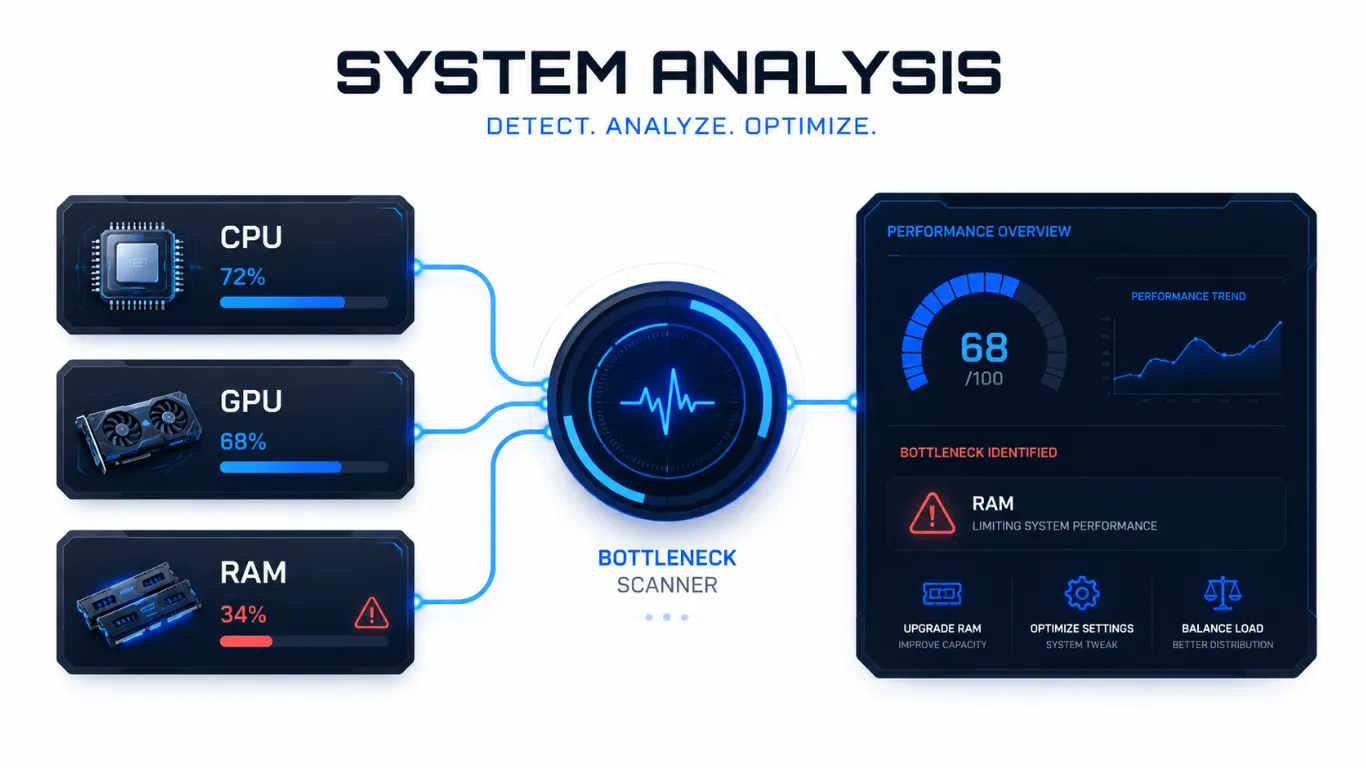
Learning how to check PC bottleneck shows you whether one part is holding the rest back, and exactly which part it is. You have two easy ways to do it. The fast way is a free online checker that compares your parts in seconds. The hands-on way is a quick test you run inside any game, watching how hard each part works.
This guide walks you through both, in plain steps, so you can find your weak link today and fix the right thing.
[Use the checker above for an instant result, then read on for the manual test.]
Two Ways to Check a PC Bottleneck
There is no single “correct” method. Each one answers a slightly different question, and together they give you the full picture.

- The online checker is best for planning. It compares your processor and graphics card and tells you the size of the gap before you spend money on parts.
- The manual test is best for proof. It shows you what is really happening in your favorite games, right now, on your screen.
Most people start with the checker for a quick answer, then confirm it with the manual test. Let us go through both.
Method 1: Use a Free Bottleneck Checker
This is the fastest way to check, and it takes about a minute. Our bottleneck calculator compares your parts using real performance scores, then weighs them against your resolution and workload.
BOTTLENECK CALCULATOR
Detect CPU, GPU & RAM bottlenecks · 400+ components · Free & Accurate
Your Build Breakdown
Upgrade Recommendations

Step 1: Enter your CPU and GPU
Type your processor and graphics card names and pick them from the list. The checker keeps over 400 parts on file, including new cards like the RTX 5070 Ti and RX 9070 XT.
Step 2: Set your resolution and workload
Choose the resolution you play at and what you mainly do, such as gaming, streaming, or editing. This step matters a lot, because the same parts can give a different result at 1080p versus 4K.
Step 3: Read your result
Press the button and you get a percentage, a clear verdict, and the name of the weak part. A low number means your parts are matched well. A high number points you to the part worth upgrading first. To learn which numbers are safe, see our guide on acceptable bottleneck percentage.
Method 2: Check Your Bottleneck Manually In-Game
The manual test proves what is happening in real life. You watch how hard your processor and graphics card work while you play. If one is maxed out while the other coasts, you have found your bottleneck.

Step 1: Turn on a usage display
Most graphics software and many free overlays can show your CPU and GPU usage on screen while you game. Turn on the display for both parts so you can watch them live.
Step 2: Play a demanding game
Load a game that pushes your PC and play a busy scene with lots of action. Watch the two usage numbers as you play.
Step 3: Read the numbers
Here is how to read what you see. This is the heart of the manual test.
| What You See | What It Means |
|---|---|
| GPU near 100%, CPU lower | Normal for gaming. Your graphics card is the limit, which is healthy at higher settings. |
| CPU near 100%, GPU lower | A CPU bottleneck. Your processor cannot keep up with your graphics card. |
| Both high, frames steady | A well-matched pairing. Both parts are working together. |
| Both low, frames capped | Something else is limiting you, like a frame cap or a slow drive. |
A quick way to remember it: in games, your graphics card sitting near 100 percent is usually a good sign. Your processor pinned at 100 percent while the card coasts is the warning sign.
Signs Your PC Has a Bottleneck (No Tools Needed)
Even before you run a test, your PC drops hints. Watch for these everyday signs.
| Sign | Likely Cause |
|---|---|
| A new part gave little or no boost | An older part is holding back the new one. |
| Frame rate jumps around in busy scenes | The processor cannot keep a steady pace. |
| Your graphics card never reaches full use | A CPU bottleneck is leaving the card waiting. |
| Stutter when multitasking or loading | Too little or too slow memory. |
If you spot these, run the checker to measure the gap, then confirm it with the manual test.
After You Check: What to Do Next
Finding the bottleneck is only step one. Now you act on it. Start with the free fixes, then upgrade the weak part if you need to.

- Change your resolution or game settings to shift the load between your parts, then re-check.
- If your graphics card is the weak side, see our picks for the best graphics cards for gaming.
- If your processor is the weak side, find a better match in the CPU performance hierarchy.
- If memory is the issue, our how much RAM you need guide helps you choose.
New to all this and want the full background first? Our guide on what a PC bottleneck is and why it happens explains it simply.
Frequently Asked Questions
How do I check if my PC has a bottleneck?
The fastest way is a free bottleneck checker that compares your processor and graphics card in seconds. To confirm it, watch your CPU and GPU usage while playing a demanding game.
How can I check my bottleneck without software?
Use a usage display in your graphics settings or a free overlay, then play a busy scene. If one part is maxed out while the other coasts, that part is your bottleneck.
Is checking a PC bottleneck accurate?
A checker gives an honest, benchmark-based estimate of the gap. The manual in-game test confirms what is really happening on your screen. Using both gives you the clearest answer.
What usage numbers show a bottleneck?
In games, your graphics card near 100 percent is usually healthy. Your processor near 100 percent while the graphics card sits low points to a CPU bottleneck.
Can I check a bottleneck before building a PC?
Yes. Enter the parts you plan to buy into the checker to see if they are matched before you spend money. This is the smart way to plan a balanced build.
How often should I check my PC for a bottleneck?
Check whenever you add a new part, change your monitor or resolution, or notice your PC feels slower than it should in your games.
Similar Posts
CPU Bottleneck Calculator: Check and Fix It 2026
Is Your Processor Holding Back Your PC? Find Out and Fix It A slow processor is one of the most common reasons a powerful graphics card never reaches its full speed. When your CPU cannot…
What Is a PC Bottleneck? Simple Guide for 2026
PC Bottlenecks Explained: What They Are and Why They Slow You Down? So what is a PC bottleneck, really? In plain words, a bottleneck is when one part of your computer is too slow to…
RAM Bottleneck Calculator: Free Memory Check 2026
Is Your Memory Slowing You Down? Check With the RAM Bottleneck Calculator Most people only think about their processor and graphics card, but memory can quietly hold a PC back too. If your RAM is…
GPU Bottleneck Calculator: Check and Fix It 2026
Is Your Graphics Card the Weak Link? Check and Fix a GPU Bottleneck When your graphics card cannot keep up with the rest of your PC, your frame rate drops and your games feel less…
CPU and GPU Bottleneck Calculator: Free Check 2026
Check If Your CPU and GPU Are a Good Match Your processor and graphics card are the two parts that decide your frame rate, and they have to work as a pair. If one is…
What Is Counted As Acceptable Bottleneck Percentage? 2026 Guide
What Counts as a Good Bottleneck Percentage on Your PC? You ran the numbers and got a result from the bottleneck calculator, but now you are stuck on the real question: is that number good…


